
Setup Microsoft 365 email on Android device
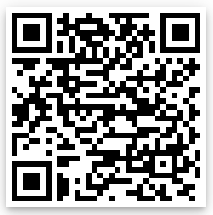 | Note: It is recommended to use the Outlook app for Android, for your business email. To get Outlook, use your phone’s camera to scan the QR code on the left. |
Follow the steps below to setup Microsoft 365 business email on your Android based phones, like Samsung, Huawei, HTC, …
1
On your android device, Go to Settings > Accounts > Add account
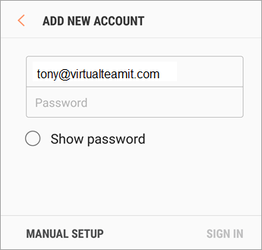
Enter your Office 365 full email address, (example: tony@virtualteamit.com), and password and then tap Next.
- If you see a (Domain\Username) field, enter your full email address
- If Domain and Username are separate fields, enter your full email address in Username, and leave Domain blank
2
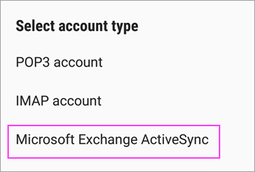
If you’re prompted to select account type, choose Microsoft Exchange ActiveSync
If you see a Server field or Incoming Server settings, change your server name to:
outlook.office365.com
3
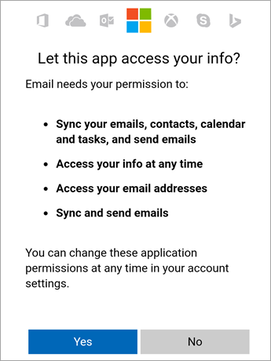
Mail app may request permissions to access your email, Tap Accept, Yes, or OK.
4
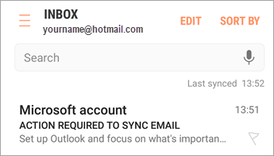
If you see an email that says “Action Required to Sync,” open it and tap Use another Mail app instead. If you don’t see this message, skip this step.
Your Office 365 email is now set up in your Android native mail app. To make sure you can send messages, compose an email and send it to yourself.
